Add or remove a website
Your website is usually the fastest way to teach your bot, and the easiest to keep current. Follow the four steps below to crawl your whole site, then check, re-index, or remove any page.
Step 1: Open the Knowledge base
Open your chatbot and click Knowledge base. You land on Data sources, which holds every source your bot learns from: websites, files, FAQs and products.

Step 2: Paste your website
Stay on the website tab. Type your homepage address in the box and click Analyse entire website.
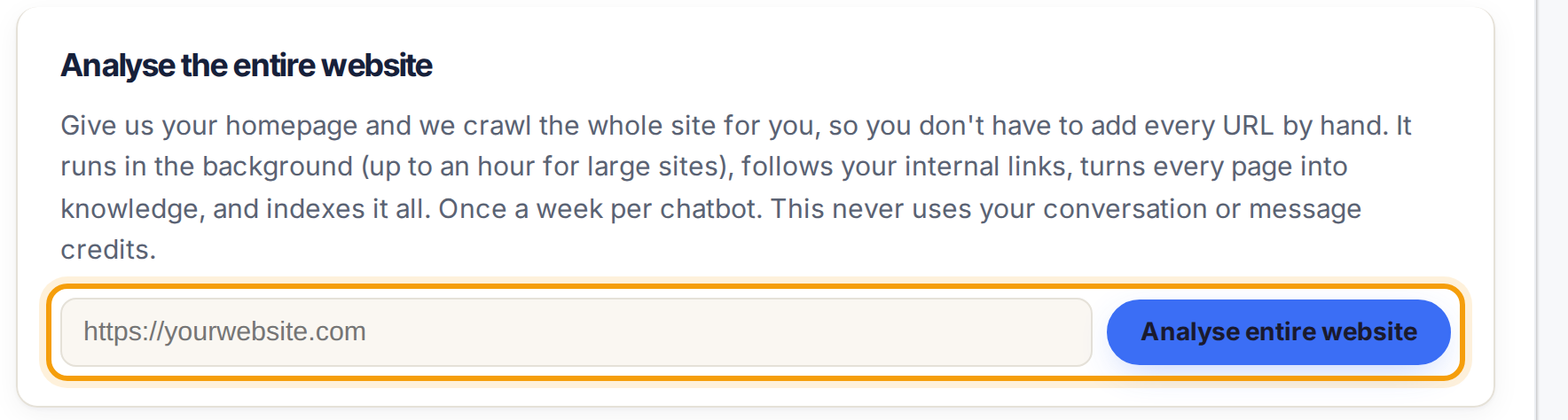
The crawl runs in the background and can take up to an hour for a big site. It follows your internal links, turns every page into knowledge, and re-crawls once a week. It never spends your message credits.
Step 3: Check what got indexed
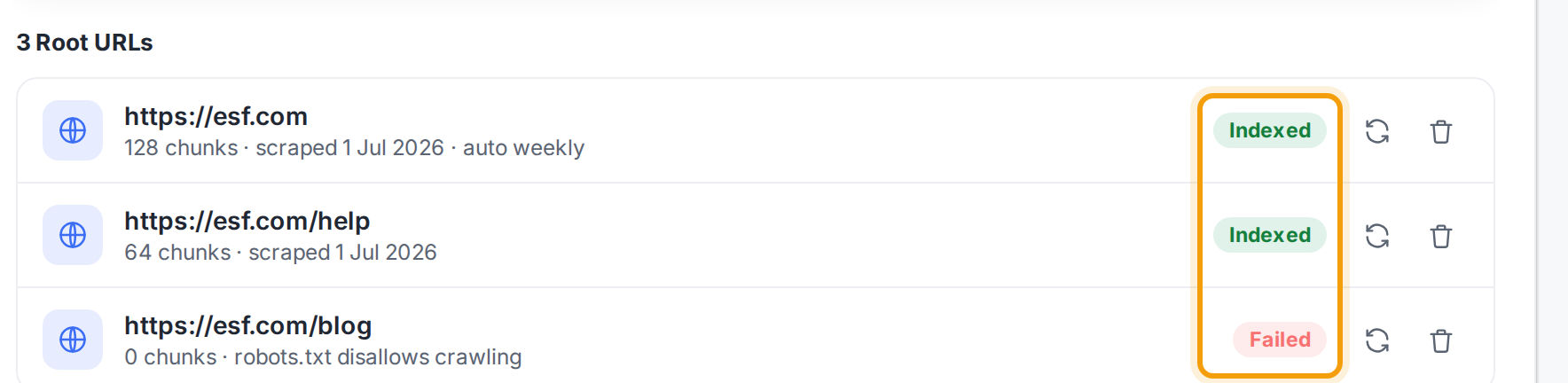
Each page gets a status. Indexed in green means it is live and your bot can use it. Failed in red means the page could not be read, and the reason is shown, usually a robots.txt file that blocks crawlers.
Step 4: Re-index or delete a page
Two buttons sit on every source. Click the circular arrow to re-crawl a page after you have changed it. Click the trash icon to remove it, and your bot forgets that content straight away.

Add just one page
Only want a single page, not the whole site? In step 2, paste that exact address instead, for example yoursite.com/returns. Only that page is added, handy for a policy you want the bot to quote word for word.
For a page you edit often, like pricing or returns, re-crawl it after each change so the bot never quotes the old version. Delete it the moment the page is gone.
Other ways to add knowledge
Websites are one of four source types. From the same screen you can also upload files (PDF, DOCX, CSV) or add FAQ pairs, and sync a product catalogue if you sell online.