Sync your product catalogue
Sync your catalogue and your bot can answer about a specific product, quote its price, and link straight to the page. It reads a plain CSV or JSON file, so you can export it from almost any shop. Three steps.
Step 1: Open the Products tab
Go to Knowledge base, open More, and click Products. This is where your catalogue lives.

Step 2: Format your file
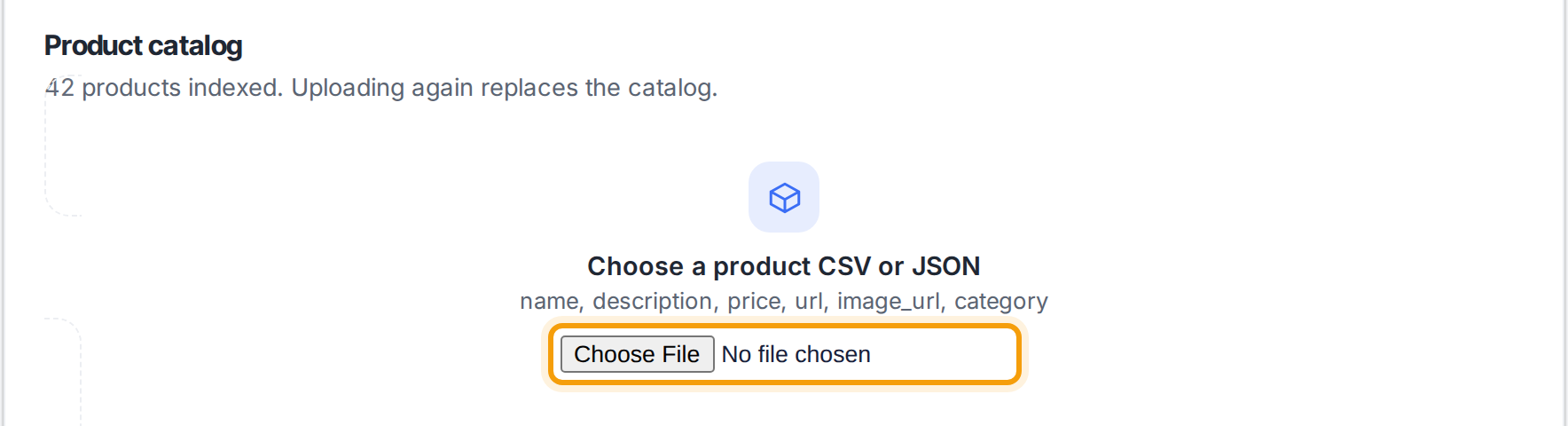
Your file needs one row per product with these columns: name, description, price, url, image_url, category. Most shop platforms export exactly this. Then click Choose File and pick your CSV or JSON.
Step 3: Upload the catalogue
Click Upload products. The bot indexes every row and can now show product cards in chat. A later upload replaces the whole catalogue, so keeping prices current is easy.

Re-upload your feed whenever prices or stock change. Because a new upload replaces the old catalogue, the bot never quotes a price that has moved.
Not selling online?
You can skip this one. Websites, files and FAQs already answer most questions, so start with Add or remove a website instead.